Sign in to ESS
- Open
https://ess.flexpeo.comin a browser. - Enter your account and password, then select
Login. Your account is your mobile number or personal email address. - If you cannot remember your password, select
Forgot passwordon the login page and follow the reset process. - After your first sign-in, use
My>Change passwordto replace your initial password.
Find a task from Home
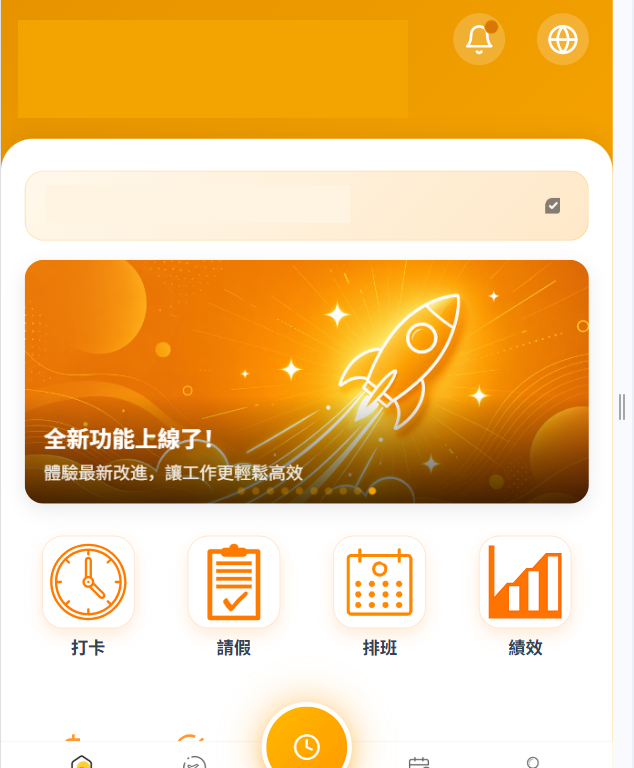
After sign-in, Home brings together frequently used employee tools and personal information:
- Use the shortcuts for clock-in, leave, schedule, performance, payslips, approvals, and claims.
- Search for a function by keyword.
- Review available leave balances, the current week's schedule, recent activity, and system notices.
- Use the fixed tabs for
Home,Leave,Attendance,Schedule, andMy.
Record attendance
Open Attendance to see the current date, shift, workplace, and location status. Select Clock in when starting work or Clock out when finishing. If you are away from the office, enable Fieldwork before clocking in.
The page also provides access to missed-punch requests, attendance records, and overtime. See Review attendance and submit requests for the request fields and tracking steps. For a missed-punch troubleshooting workflow, see Handling a Missed Clock-In.
Request leave and review your schedule
Open Leave to review balances, pending or approved requests, submit leave, and use the leave calendar. Open Schedule to switch between weekly and daily views and select a day to review its shift details.
The leave types and balances available to you depend on your employer's policy. See Request Leave and View Your Schedule for the full workflow.
Review payslips and payment records
Open the payslip function to review your personal payment records:
- Select a year.
- Select the pay period or month.
- Open the relevant payslip to review pay components and deductions, or use the available download action.
Complete performance reviews
Open Performance to view or complete performance records. My Performance separates records into all, self-review, peer review, and supervisor review. Choose the relevant tab to view a record or complete an evaluation assigned to you.
Submit and track claims
Open Claims to review your claim history and status. To make a new claim, enter the item and amount, attach the receipt, and submit it for approval.
See Submitting and Tracking Expense Claims for the complete process.
Handle approvals as an approver
Employees submit leave, missed-punch, overtime, and claim requests. A manager or other assigned approver uses Approval to:
- Review requests awaiting their action.
- Open a request and check its details.
- Approve or reject it.
If you are not an assigned approver, use the relevant employee function to follow your own request status instead.
See Reviewing Requests in the Approval Center for role and processing details.
Manage personal tools
Open My to access:
Profilefor viewing or editing your basic personal details.Change passwordfor entering your old password and choosing a new one.Address Bookfor company contacts.Organizationfor the company and department structure.Messagesfor system notices and announcements.Operation logfor your own activity history.
Get help
If a function is unavailable or the on-screen options do not match this guide, contact your employer's HR representative first. For a system or service issue, see Submitting a Service Request.