Review your attendance history
Open Attendance and select Attendance Records. The records page lets an employee:
- Review clock-in and clock-out times by date.
- Check the status of missed-punch corrections and fieldwork records.
- Compare recorded hours and identify attendance exceptions.
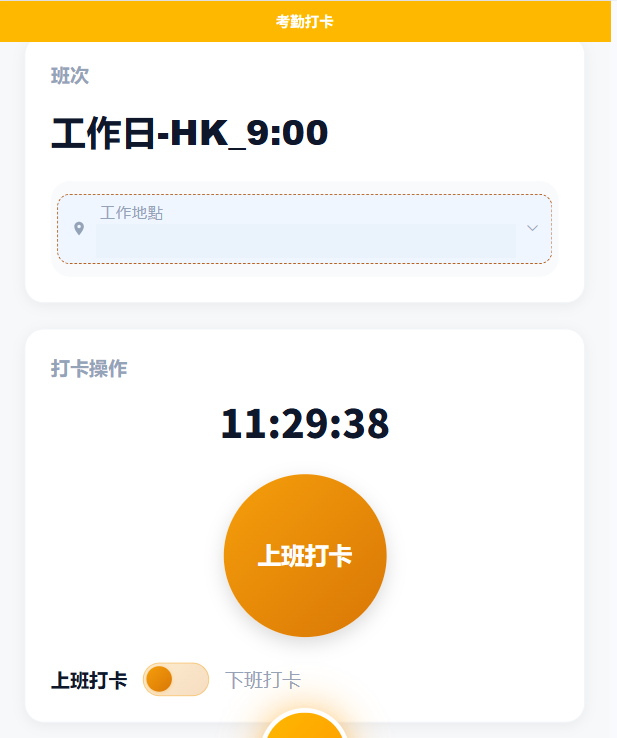
Submit a missed-punch correction
From the attendance clock-in page, select Missed Punch Request, then complete:
Punch Type, such as clock-in or clock-out.- The correction
Date. - The corrected
Time. - The
Reasonfor the missed punch. - An image as supporting evidence, if needed.
- The approver shown in the
Approval Workflow.
Check the details, then select Submit. The request is sent to the supervisor shown in the approval workflow.
For deeper troubleshooting and the full manager review flow, see Handling a Missed Clock-In.
Submit an overtime request
From the attendance clock-in page, select Overtime, then complete:
- The overtime date.
- The start and end times.
- The overtime reason.
- The approver shown in the approval workflow.
Check the request and select Submit.
Track a submitted request
- Employees can follow an overtime request in its approval workflow.
- In
Attendance Records, employees can check the status of missed-punch corrections and fieldwork records. - A submitted request remains subject to the assigned approver's decision.
Review requests as an approver
These actions apply only to a manager or another person assigned as the approver:
- Open
Approvaland review the requests awaiting your action. - Open the request and check the employee's dates, times, reason, and any evidence.
- Approve or reject the request.
Employees should submit and track their requests; they do not perform the approver actions unless they have separately been assigned that role.