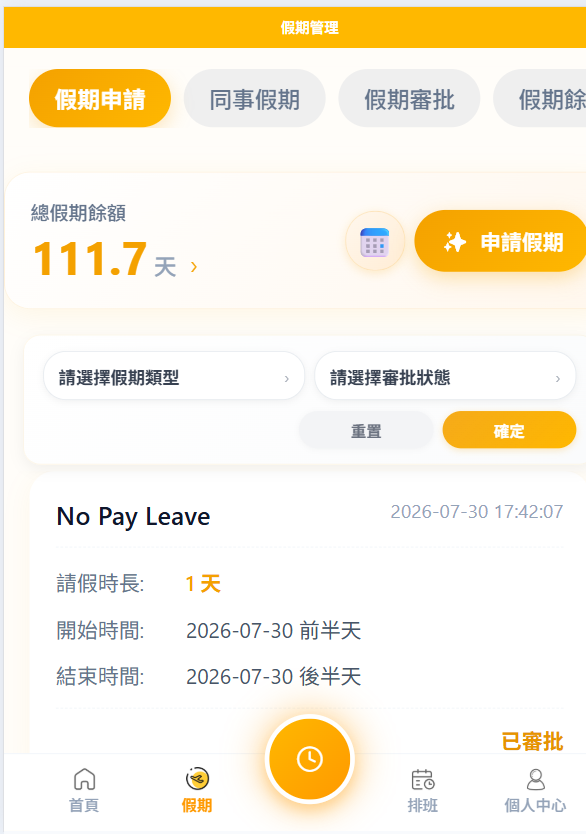
The leave types and balances available to you depend on your employer's leave policy.
Open Your Leave Home
- Select
Leavefrom the bottom navigation. - Review the balance shown for each available leave type.
- Check your pending and approved leave requests.
- Select
Submit Leaveto start a request, or openLeave Calendarto review leave by date.
Submit a Leave Request
- Open
Submit Leave. - Select the leave type.
- Choose the start and end dates or duration.
- Enter a reason if needed.
- Upload a supporting attachment if applicable.
- Review the details, then select
Submit.
The request remains pending until it is reviewed. Once your supervisor approves it, the corresponding leave balance is deducted.
Review Leave in the Calendar
- Open
Leave Calendarfrom the leave home. - Use the calendar to review the distribution and usage of your leave days.
- Return to the leave home when you need to check request status or balances.
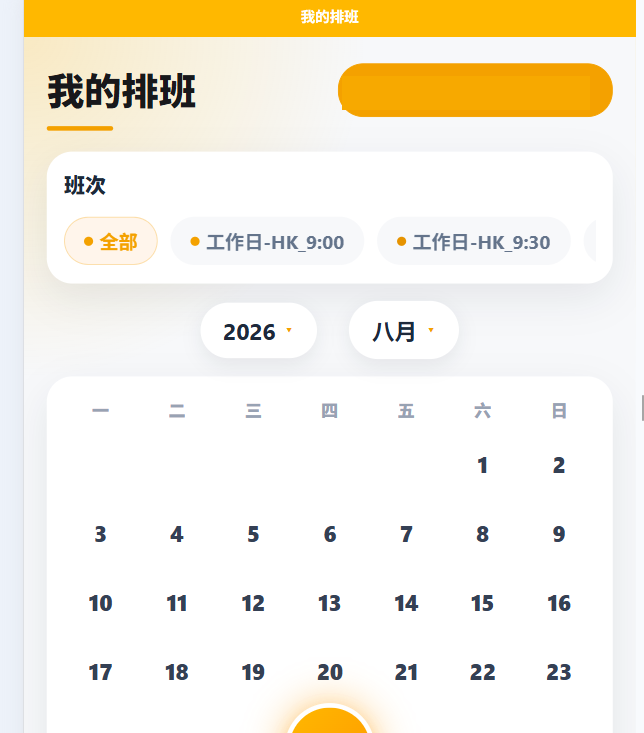
View Your Work Schedule
- Select
Schedulefrom the bottom navigation. - Switch between the weekly and daily calendar views as needed.
- Select
Shift Detailsfor a scheduled day to review that shift's information.